Votel Library guide
Votel Library turns a brand into reusable campaign assets
Votel Library is not just a file drawer. It brings together the brand source of truth, image creation, video creation, reusable website and email templates, and the finished assets a team needs to put work into market. This guide documents the Library areas visible in a live account and shows concrete ways to use them.
Affiliate link: we may earn a commission if you become a paying customer, at no extra cost to you. Details.
Researched by HighLevel vs Votel Editorial Team · Last verified · Methodology · We may earn a commission if you join Votel through our links. Details
The short answer
The differentiated story is the connected creative workflow—not one more AI generation button
A team can establish its logo, palette, voice, visual direction, and rules in AI Brand Kit; use that context while creating an image; animate the image or turn a script into video; and retain the result alongside the files, templates, and snapshots it will support. That is a meaningful shift from a collection of disconnected generation tools to a reusable content-production system.
On this pageEvery Library area
01 · Library map
02 · AI Video
03 · Evidence
The feature map
Seven Library areas, each with a job in the content workflow
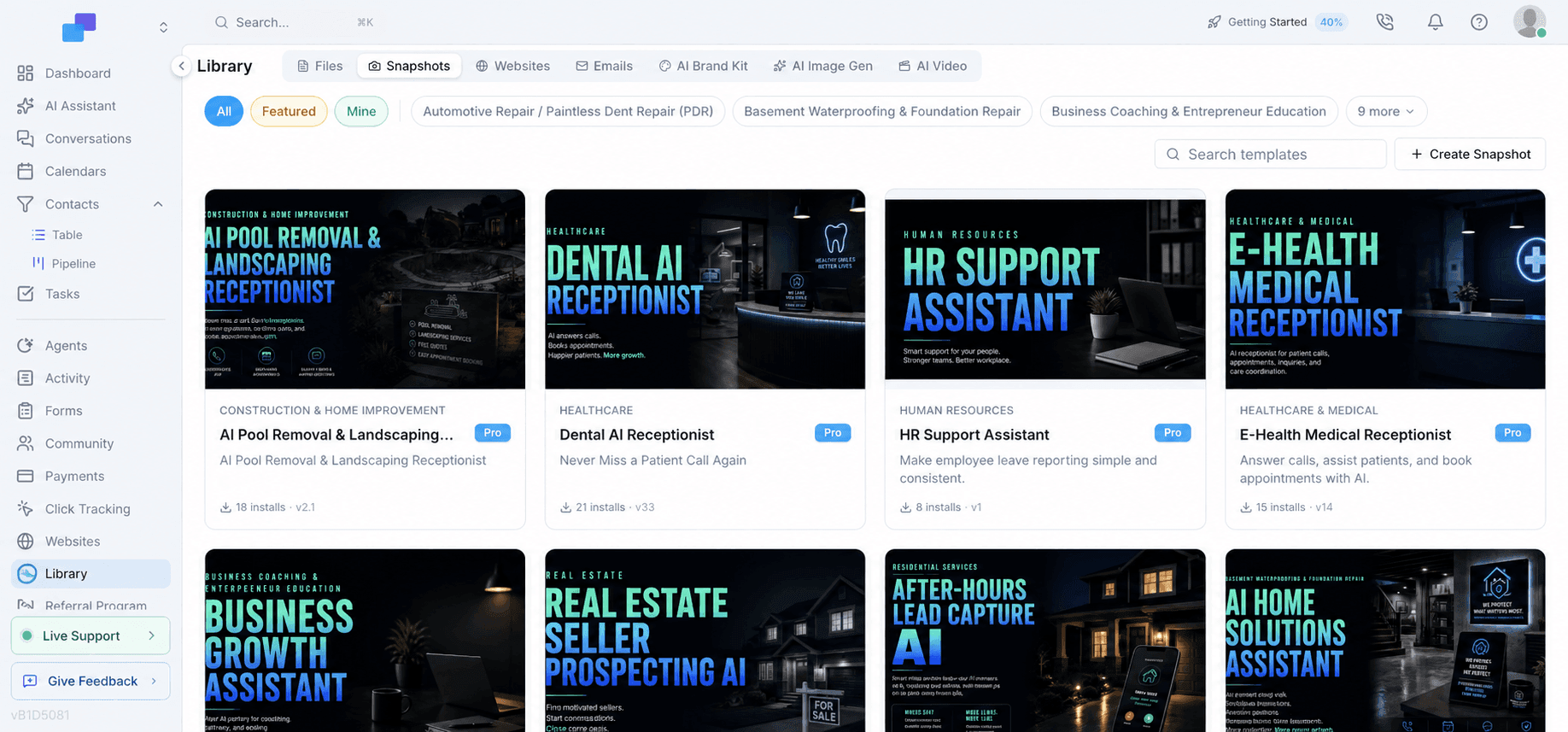
The first four areas make assets and starting points discoverable. The last three turn the Library into a native AI-creation surface, with brand context and outputs retained in the workspace.
Files
The operational asset home for files that teams want to find and reuse.
Snapshots
A searchable area for reusable workspace configurations and starting points.
Website templates
Browse reusable website assets rather than rebuilding every starting point.
Email templates
Start blank, import, generate with AI, or choose a reusable design that fits the campaign.
Brand context
AI Brand Kit makes brand direction explicit before generation
The Brand Kit is more than a logo upload. The reviewed workspace included logo controls, imagery drawn from the company site, editable brand documentation, voice and tone, color palette, typography, imagery style, audiences, boilerplate, and concrete do's and don'ts. Site-derived images can be marked as the logo or saved to the media library.
Example: a brand rule that changes the output
Instead of prompting an image model with “make an agency ad,” a team can establish a rule such as: “Use real product UI in softly shadowed white cards; keep the background light and airy; reserve gold for the primary call to action; avoid stock business-handshake photography.” The Kit gives the prompt a repeatable visual standard, and it makes that standard available to the next person who creates a campaign.
AI Image Gen
Create the visual in the format where it will actually be used
The observed image generator offers Nano Banana, OpenAI, and Ideogram; a selectable Brand Kit; reference images; automatic logo inclusion when a Brand Kit is chosen; model selection; and a prior-generation history. Its available formats—1:1, 16:9, 9:16, 4:5, 3:2, 3:4, and 4:3—make it practical to make a deliberate asset for a feed, reel, email, or website placement rather than cropping one generic image later.
The standout feature
AI Video brings multiple leading-model workflows into the same Library
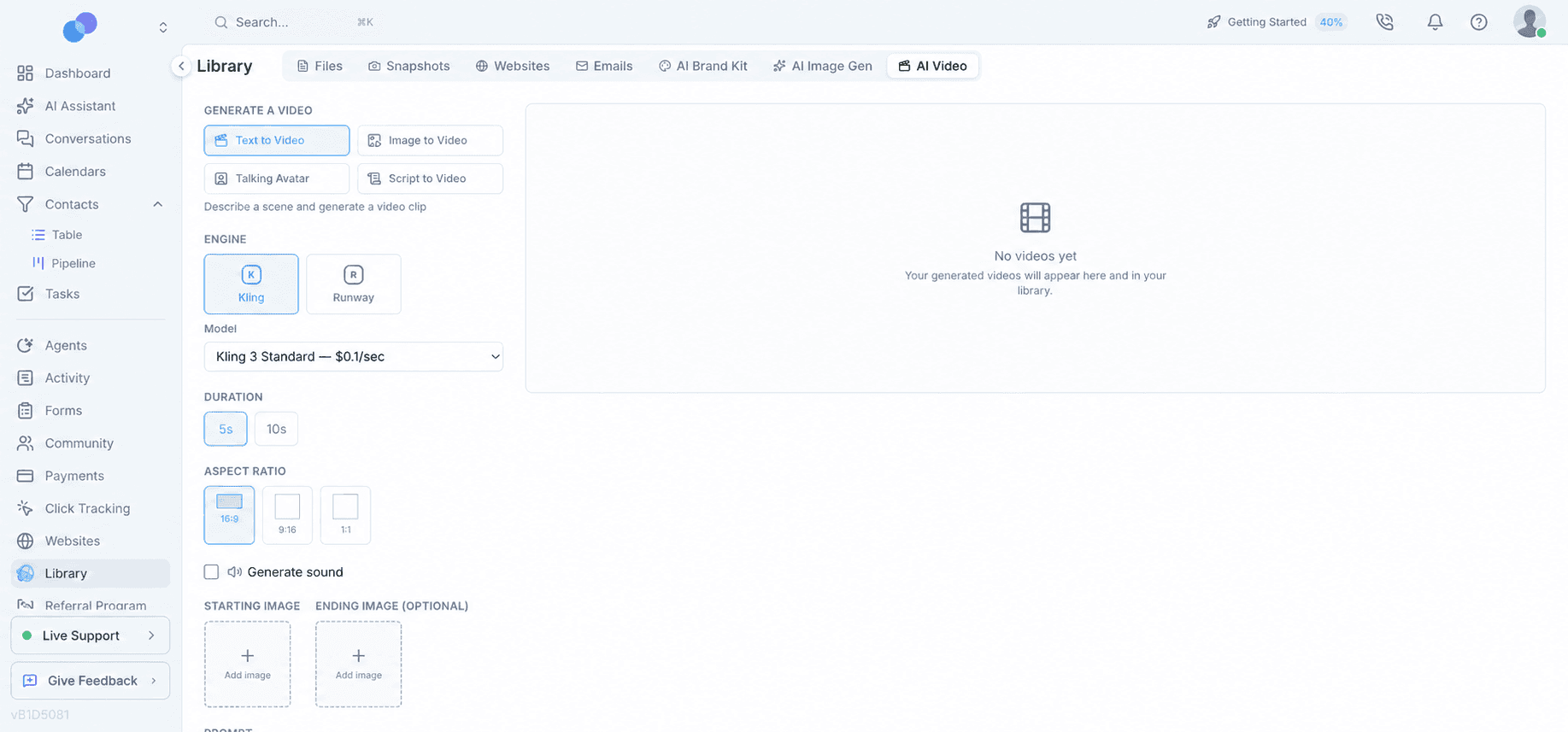
The notable part of AI Video is choice without abandoning the workspace. The reviewed interface exposes scene generation through Kling and Runway, presenter-led creation through HeyGen and Hedra, as well as controls that make the output fit a specific placement. Finished renders appear in Recent Videos and the Library.
Four creation paths start from four different creative inputs
Text to Video
Describe a scene and generate a short clip. The visible workflow supports Kling or Runway, a model tier, 5- or 10-second duration, 16:9/9:16/1:1 framing, optional sound, a starting image, an optional ending image, and a negative prompt.
Best for: Turn a clear creative direction into a hero loop, social teaser, or motion background.
Image to Video
Bring an approved still image to life while keeping the engine, duration, aspect ratio, sound, prompting, and optional end-frame controls close at hand.
Best for: Animate a proven ad creative or product screenshot rather than asking a model to recreate it from scratch.
Talking Avatar
Pair a presenter photo with a script using HeyGen or Hedra. The observed controls included 15-, 30-, and 60-second options, 16:9/9:16/1:1 framing, and 720p or 1080p resolution.
Best for: Give a new feature announcement a human presenter without booking a studio session.
Script to Video
Turn a brief—or an exact script—into a narrated HeyGen video, with duration and aspect-ratio controls.
Best for: Create a client education video from a campaign brief or a polished narration draft.
Actual examples
Four campaign-ready starting points
These are deliberately specific prompts and scripts, not “make a cool video.” They establish the format, visual constraints, motion direction, and intended business use before asking a generation model to produce anything.
Vertical social teaser
Image to Video · 9:16Animate this branded product dashboard into a 7-second vertical teaser. Start with a slow camera push toward the campaign metric, add a subtle amber highlight around the result, then end on the logo lockup. Clean SaaS motion, no extra text, no warped interface elements.
Output: A short paid-social or organic reel derived from a real product image.
Launch announcement
Talking Avatar · 30 secondsNew feature: our client portal now gives every customer one place to see projects, messages, and next steps. Log in, choose your workspace, and see what needs attention today. We'll keep the work moving so nothing falls through the cracks.
Output: A presenter-led update for customers, prospects, or an onboarding sequence.
Website hero loop
Text to Video · 16:9A polished, light-filled agency workspace with floating white product cards over a subtle cream-to-sky-to-mint gradient. One card resolves from scattered campaign assets into an organized Library. Slow elegant camera drift, premium SaaS aesthetic, no readable text.
Output: A motion background that communicates organization without depending on text inside the video.
Client education video
Script to Video · 30 secondsExplain in 30 seconds how a local service business can turn one customer success story into an image post, short video, email header, and website section while preserving the same brand look. Tone: direct, practical, and encouraging. End with a clear invitation to open Library.
Output: A reusable how-it-works video for onboarding, education, or sales enablement.
A complete workflow
One customer story, four coordinated assets
- 01
Capture the proof
Save a customer quote, approved photo, and product screenshot in Files.
- 02
Make the campaign visual
Use AI Image Gen with the Brand Kit to create a placement-specific supporting image.
- 03
Create the motion
Animate the image for social or use Script to Video to tell the customer story with narration.
- 04
Distribute from a shared source
Reuse the final asset in website and email work while the source material remains organized in Library.
Cost and timing are visible
The interface surfaces the creative trade-off before a render begins
The model menu showed Kling 3 Standard at $0.10/sec and Kling 3 Pro at $0.25/sec; Runway Gen-4 Turbo at $0.10/sec and Gen-4.5 at $0.25/sec. A 5-second Kling Standard example estimated about $0.50 with a typical 2–7 minute wait, while the visible comparable Runway setup estimated about 1–2 minutes. Those values are a snapshot of the checked account and should be treated as current-interface estimates, not a permanent price card.
Questions answered
What is Votel Library?
Library is Votel's workspace for files, snapshots, website templates, email templates, AI Brand Kit, AI Image Gen, and AI Video. Its value is the connection between brand context, creation, storage, and reuse.
What can Votel AI Video create?
The observed interface offers Text to Video, Image to Video, Talking Avatar, and Script to Video. Available controls vary by the chosen workflow and engine.
Which AI video models are visible in Votel?
The checked interface exposed Kling 3 Standard and Pro, Runway Gen-4 Turbo and Gen-4.5, plus HeyGen and Hedra in the presenter-oriented flow. Model availability and pricing can change, so these are dated observations rather than permanent promises.
Does generated video stay inside Votel?
Yes. The AI Video screen explicitly says generated videos appear in Recent Videos and in the user's Library, making them available as workspace assets after generation.
The message to lead with
Create the visual, the motion, and the spokesperson—without leaving Votel.
Start from a prompt, image, script, or presenter photo. Use the brand context already in the workspace. Keep the finished asset ready for the next email, page, campaign, or client deliverable.
Explore the full Votel feature map